Updated On
PromeAI vs Veras: Create Architectural Visual Proposals from Model Screenshots
Turn white model screenshots into review-ready material, lighting, and interior schemes.
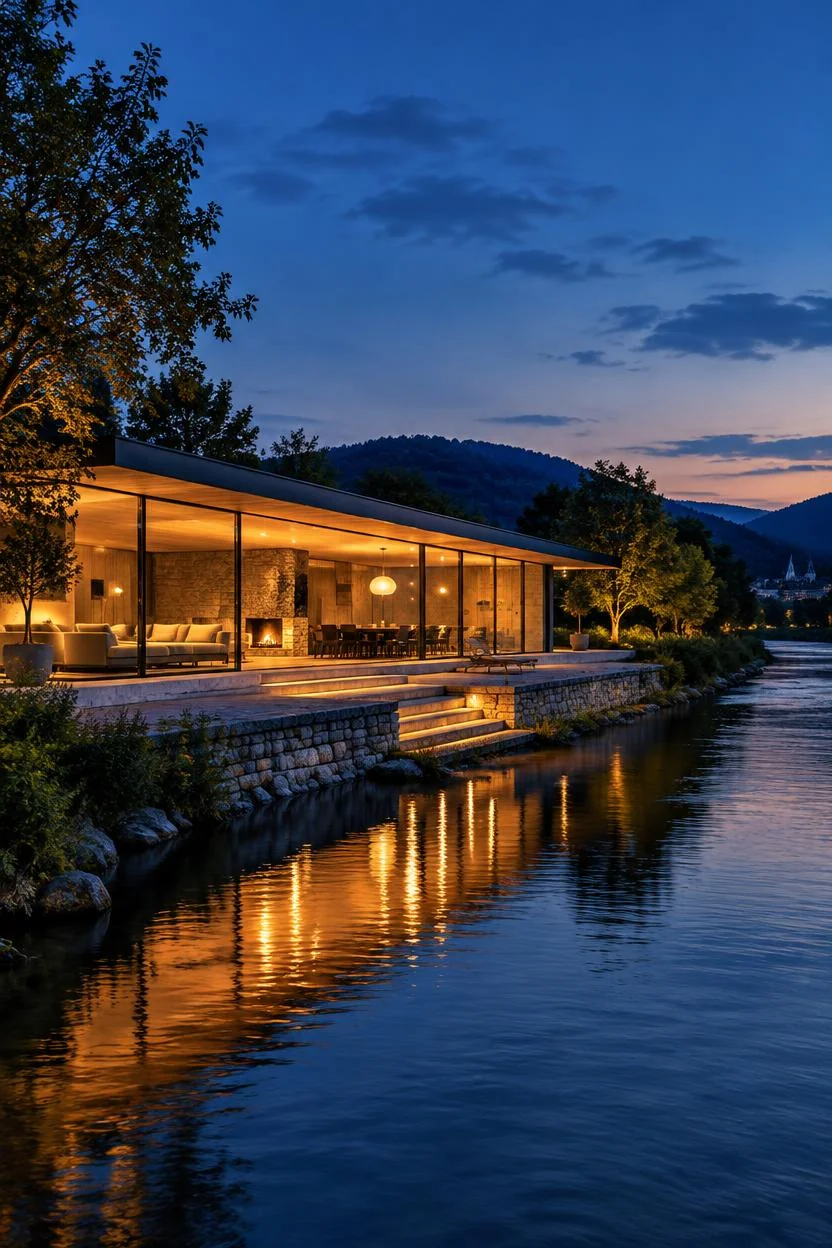
The architect delivers a white model screenshot, and the client wants to review entrance materials, interior furnishings, and evening atmosphere first. PromeAI lets the proposal team start directly from these images, completing the first round of visual iteration entirely in the browser.
Start from the model screenshot, lock in the architectural presentation direction first
Upload the white model screenshot to sketch rendering, and use prompts to describe glass, stone, sky, and site atmosphere. Pick one render that clearly shows the core design relationships, then use it to iterate on finer details.
Use selection areas and reference images for material reviews
Select the specified wall or entrance in region rendering, and compare materials like glass and wood veneer using reference images. If the client wants to see a different time-of-day atmosphere, use Relight to adjust lighting, and review material and lighting versions side by side.
Include both exterior and interior in the same presentation round
Arrange the original screenshot, exterior render, furnishing references, and interior candidate images side by side on Canvas. For teams that use images to drive review workflows, PromeAI's value lies in letting you start directly from the assets you receive, and combine visuals from different spaces into a single proposal.

 Pricing