Oops! You’re running out of Coins. To keep using, please upgrade your plan or add more coins to your account.
YOUR PHOTO. A NEW CHRISTMAS SCENE.
AI Christmas Photo Generator from Your Photos
Turn a selfie, family or pet photo into a Christmas portrait. Choose a holiday look, add your photo, and personalize the scene before generating in PromeAI Canvas.
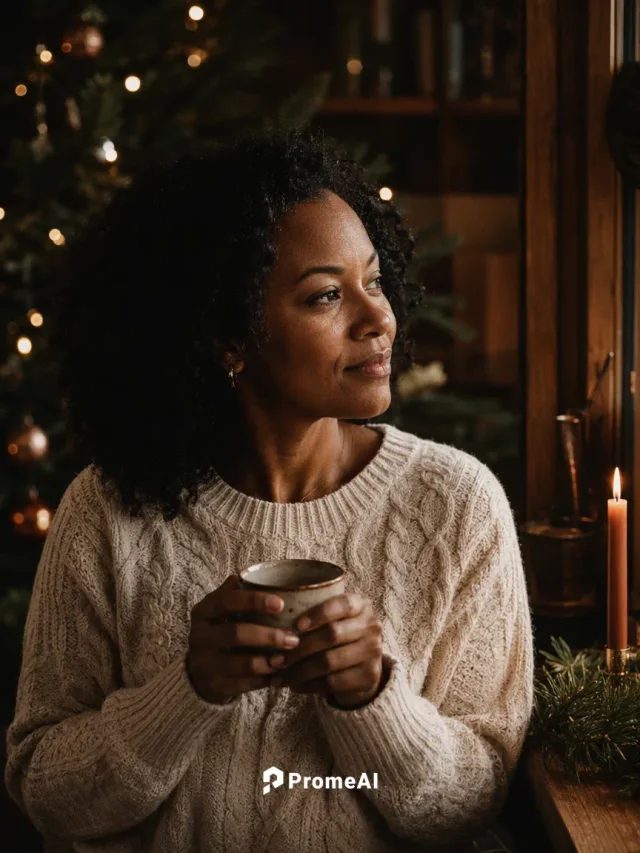
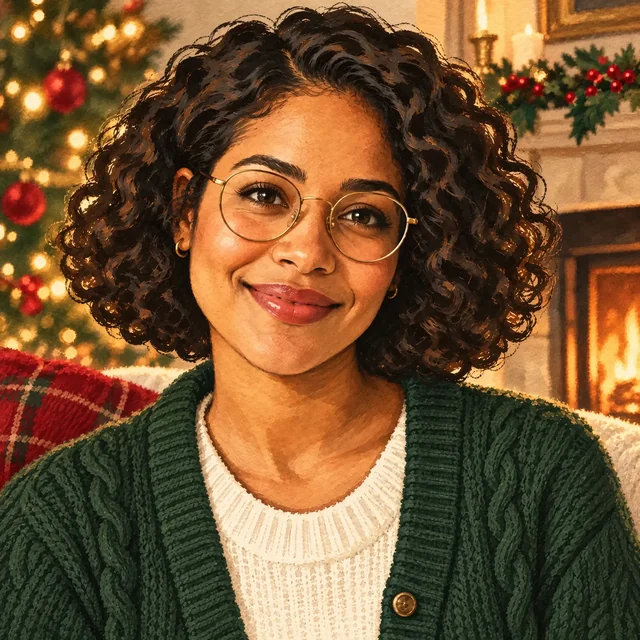
YOUR CHRISTMAS INSPIRATIONCandlelit Christmas portrait
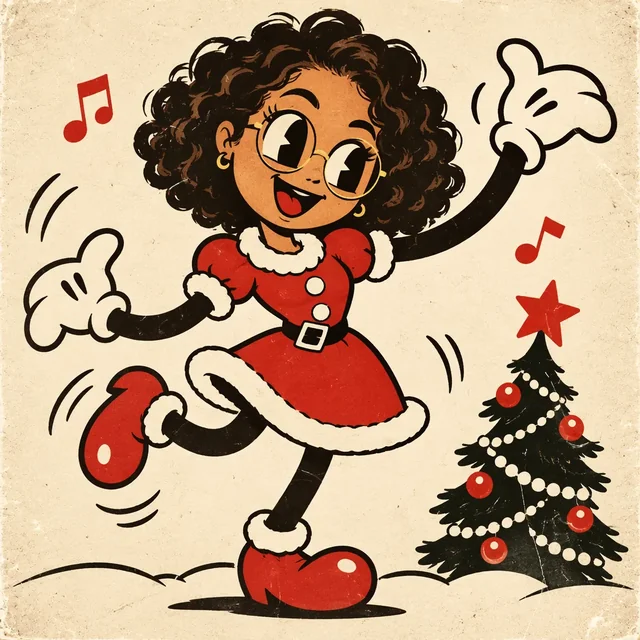
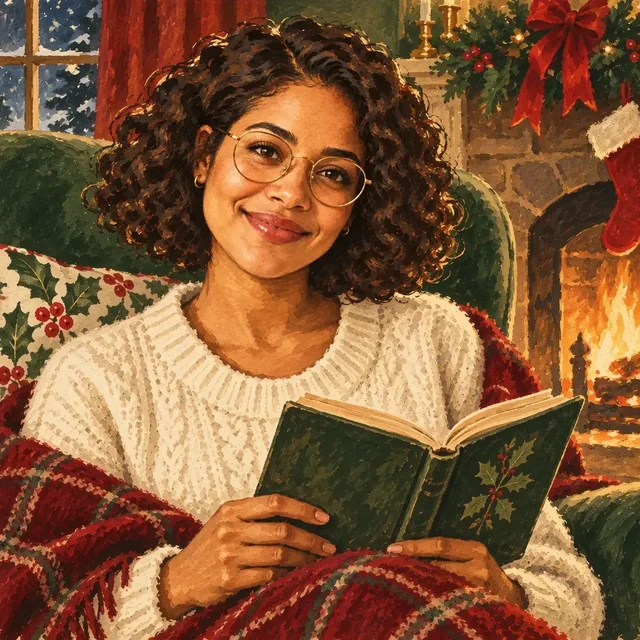
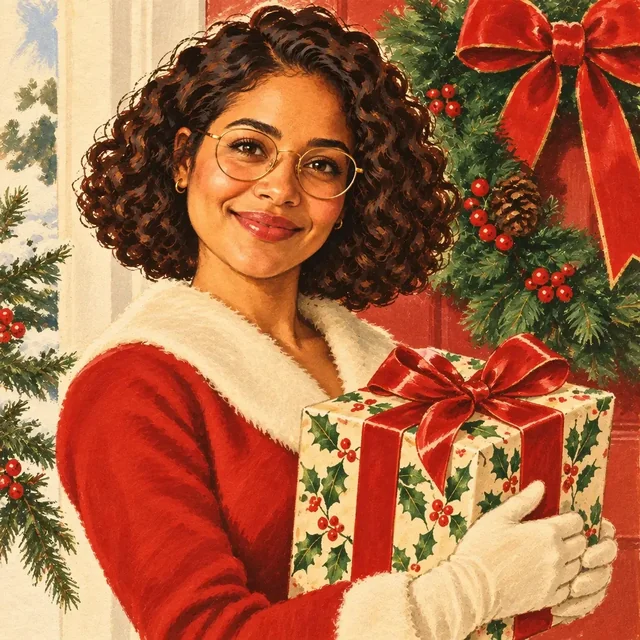
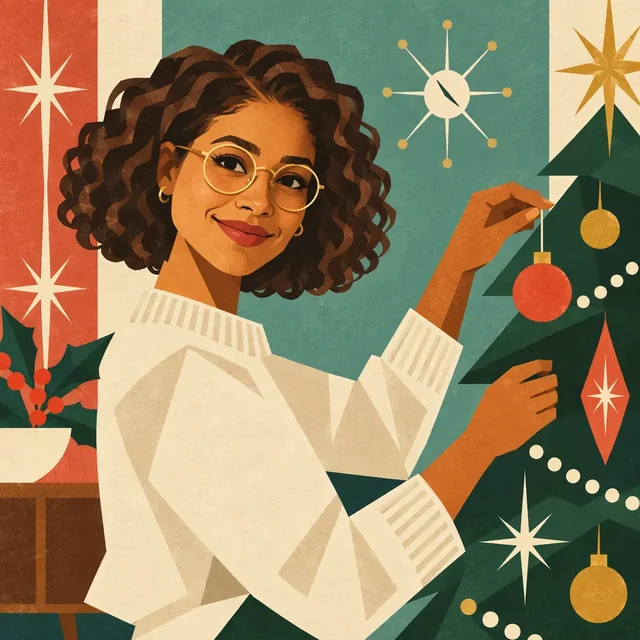
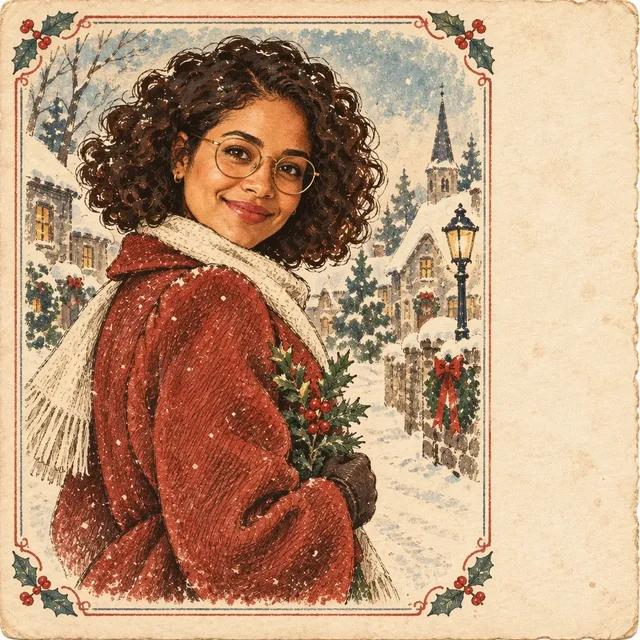
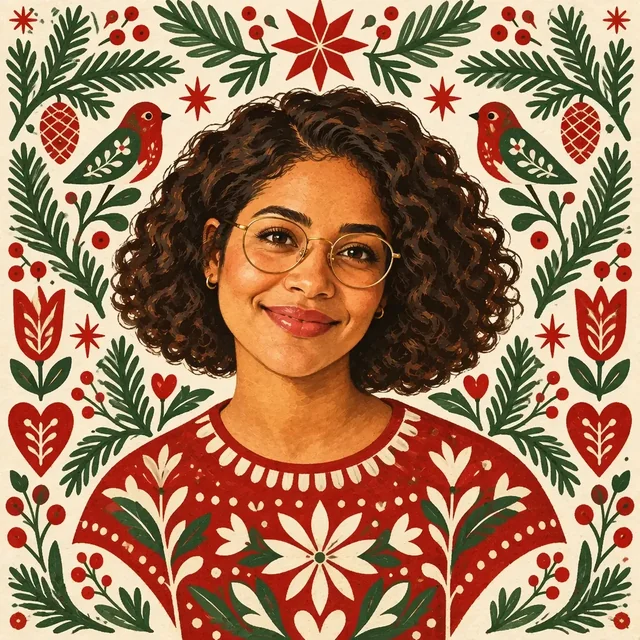
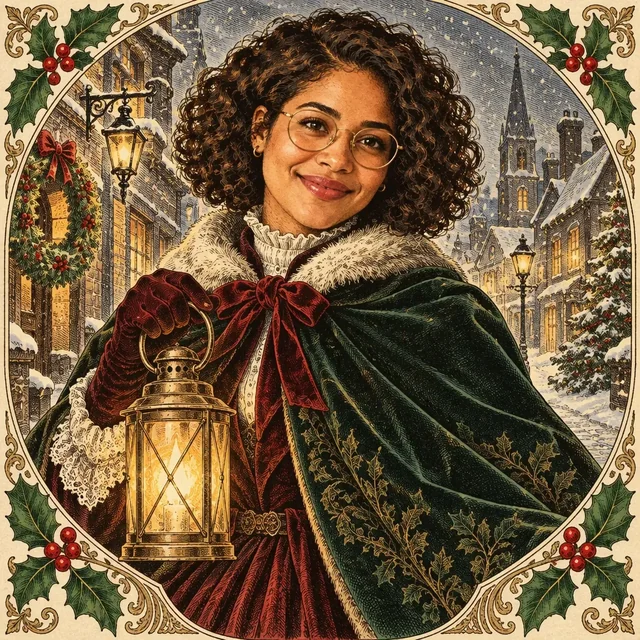
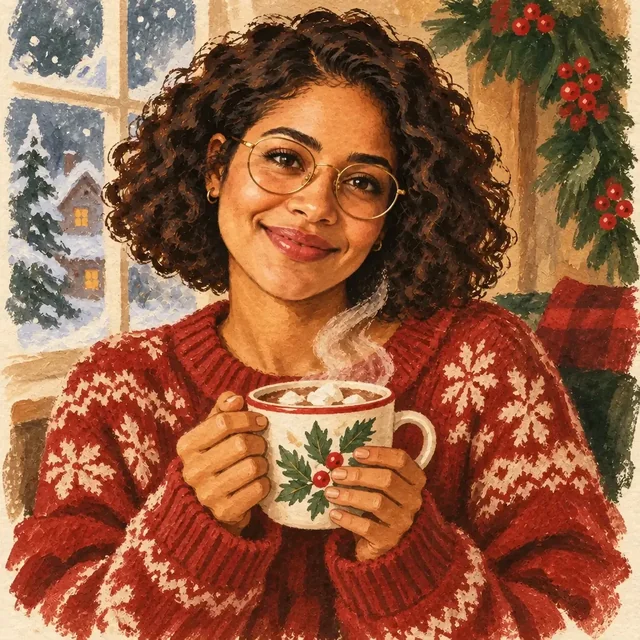
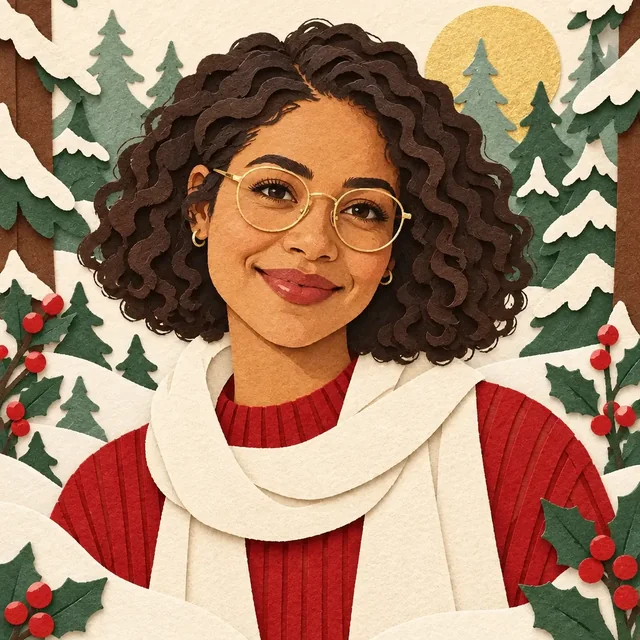
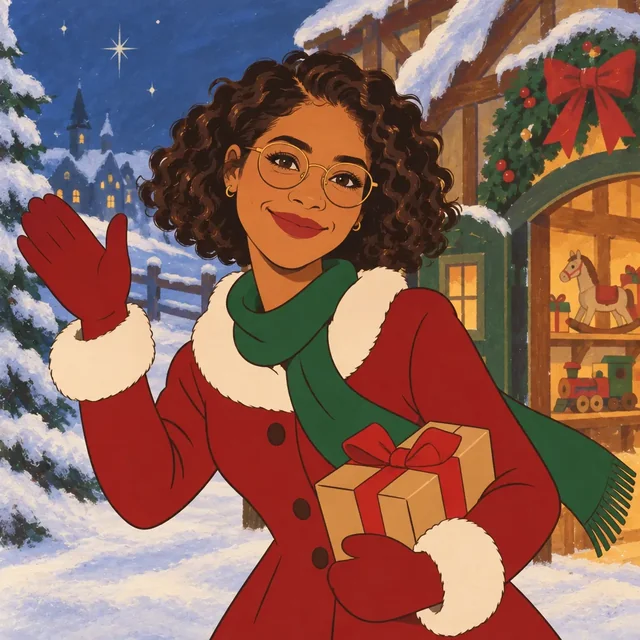
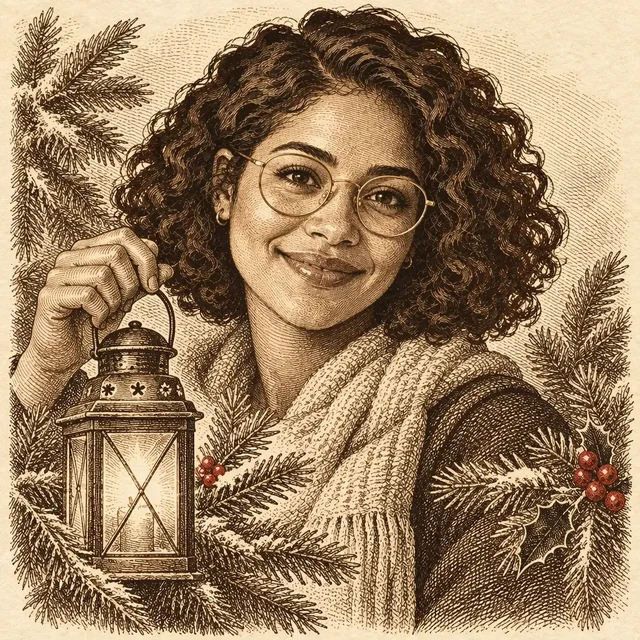
Turn one photo into twelve vintage Christmas styles
Compare the same fictional sample portrait with a 1950s holiday illustration. Explore rubber-hose cartoons, folk art, paper-cut textures and etching in the Vintage Styles filter. Upload your own photo, adapt the prompt and check likeness in Canvas.
Verified Canvas result: GPT Image 2.5 Sunburst, 1024 × 1024. The reference is a fictional AI sample. The reusable prompt is an editorial adaptation; review likeness in your own result.
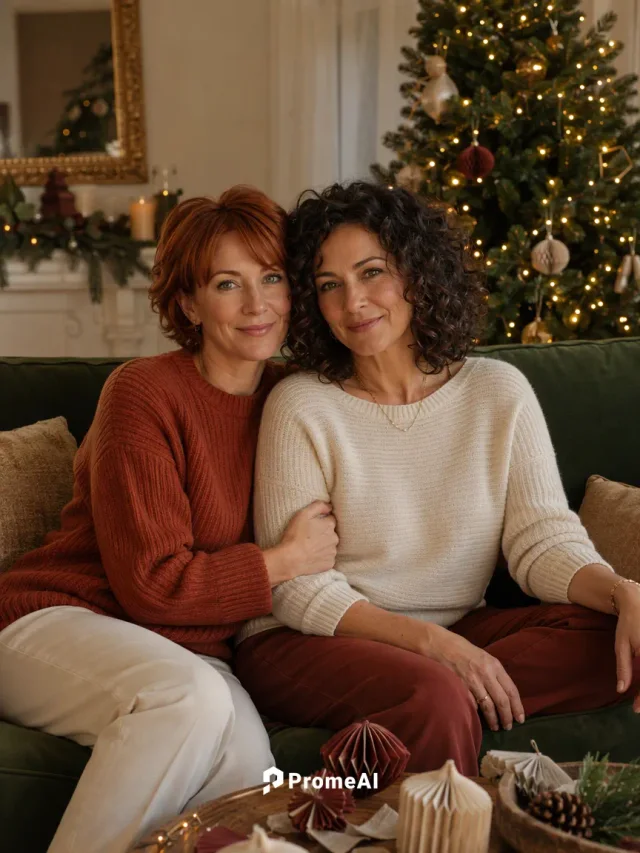
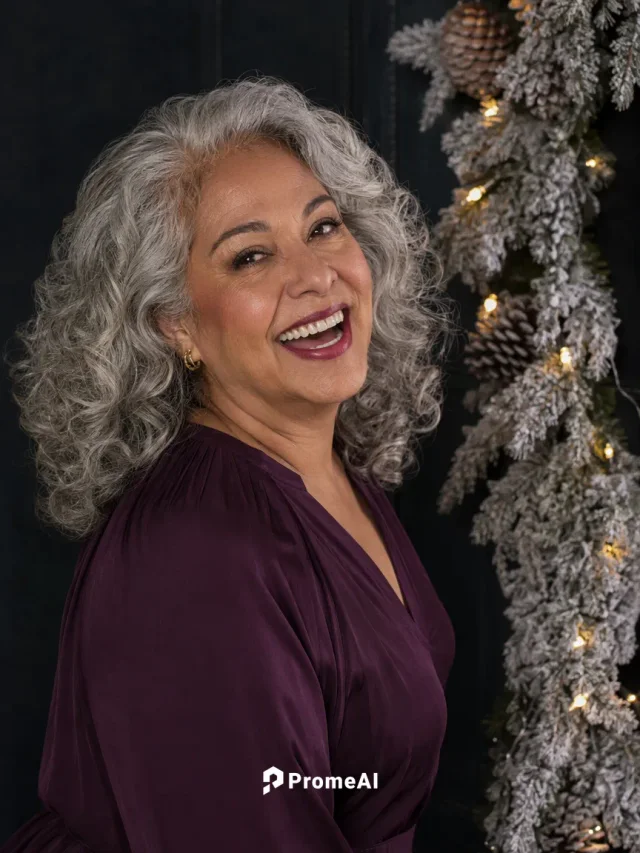
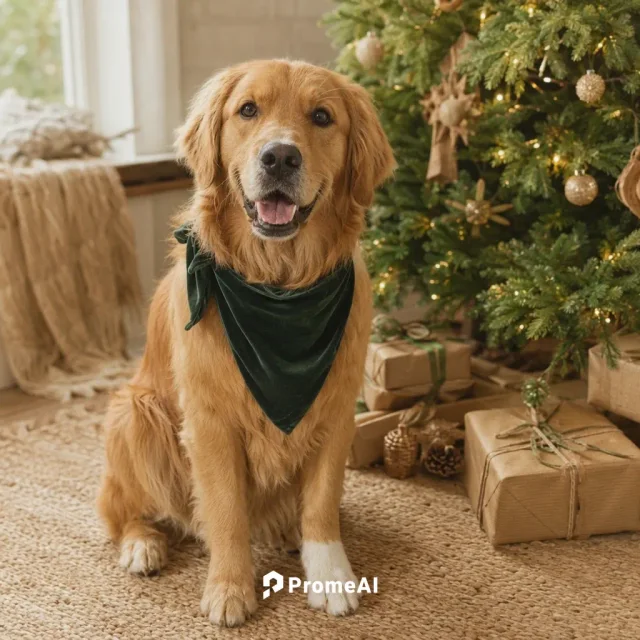
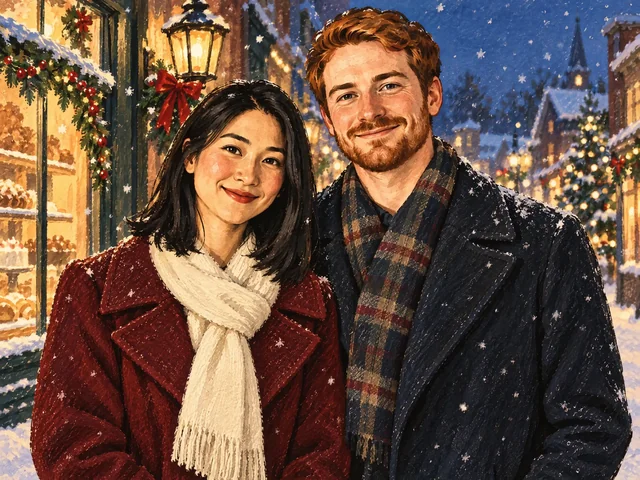
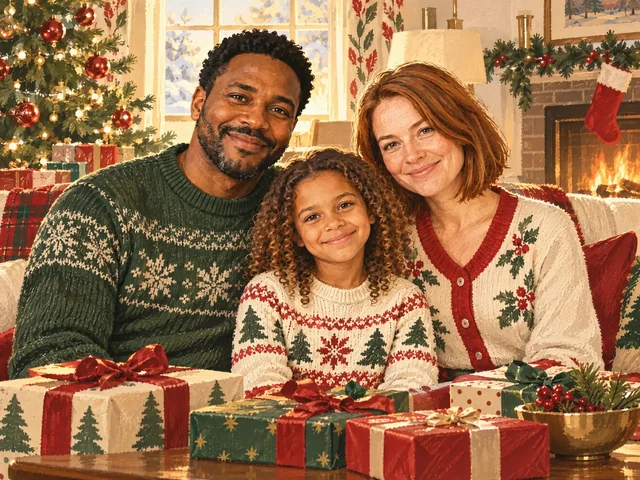
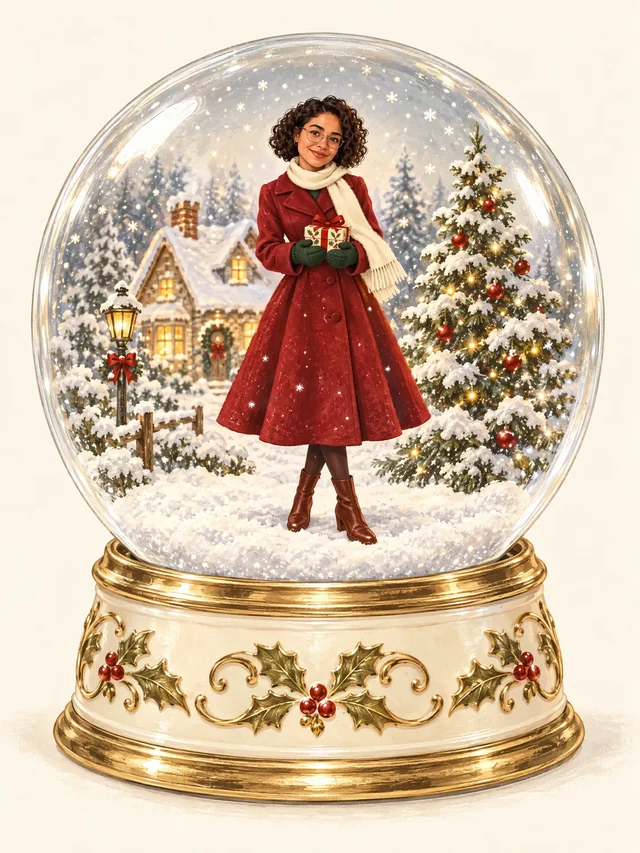
Explore 42 Christmas looks, including portraits, festive outfits, vintage illustration styles and family or pet scenes. Choose Create Similar to load a look, then add your photo and adjust the scene.
Original PromeAI examples made with GPT Image 2 and GPT Image 2.5 Sunburst. The vintage additions come from verified Canvas results with fictional sample subjects. Their reusable prompts are editorial adaptations; new generations will vary.
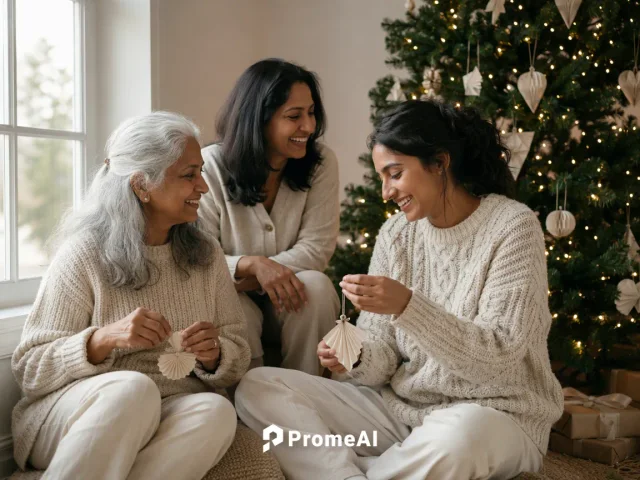
Start with a selfie, couple photo, or pet portrait. For AI family Christmas photos, use a clear group photo with every face visible. Describe the setting and what to keep, then review faces and details in Canvas.
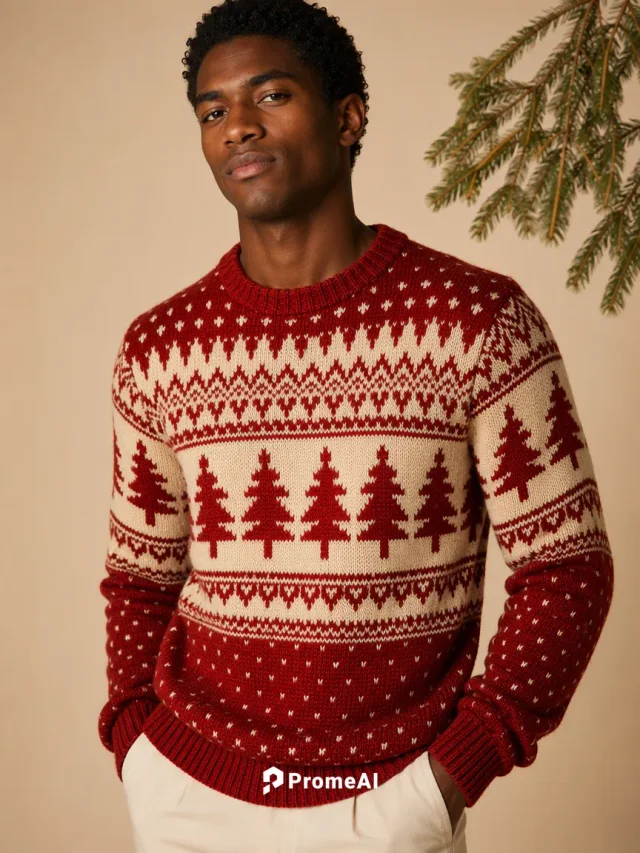
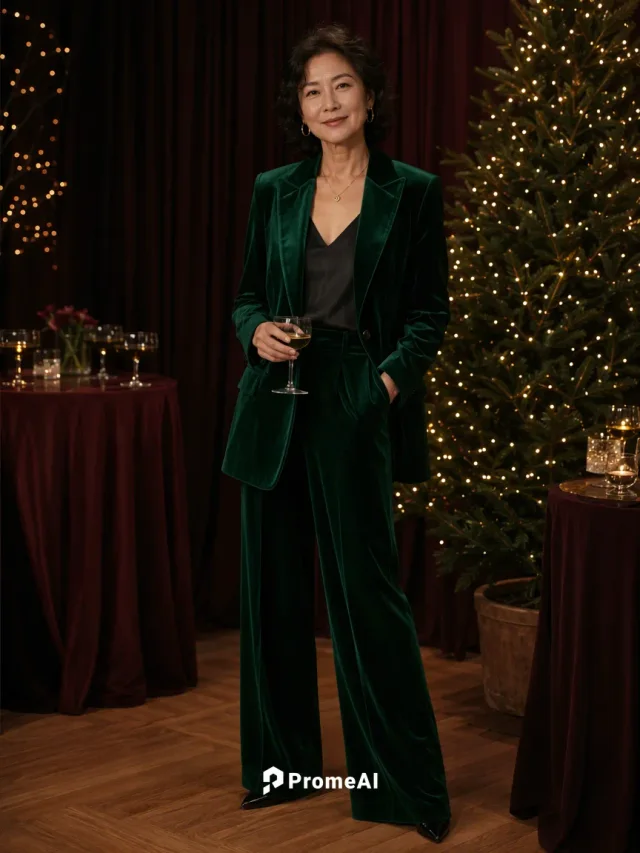
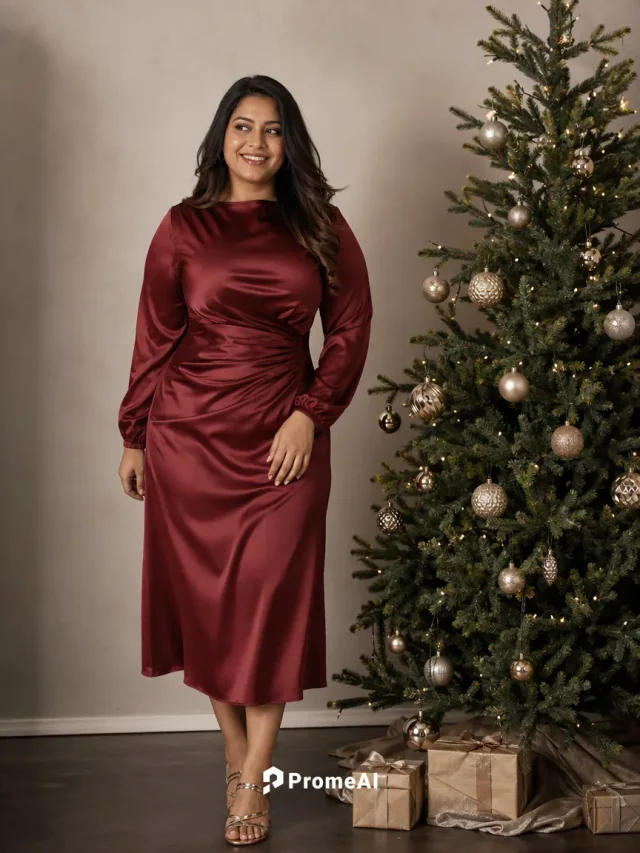
Explore a patterned sweater, emerald velvet suit, or cranberry dress. Upload your photo and describe the clothing, fabric, and colors you want to change.
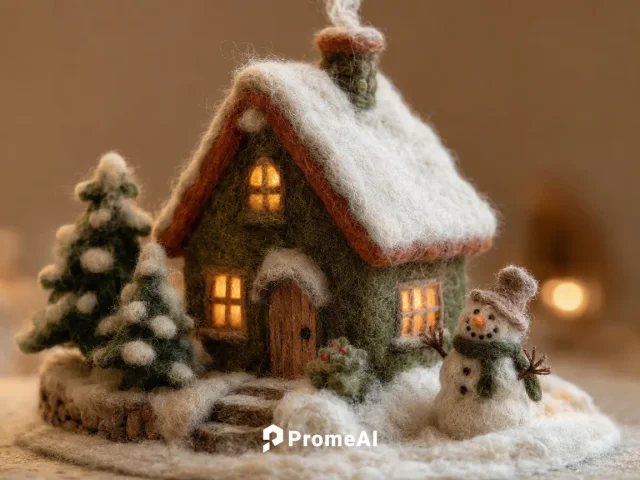
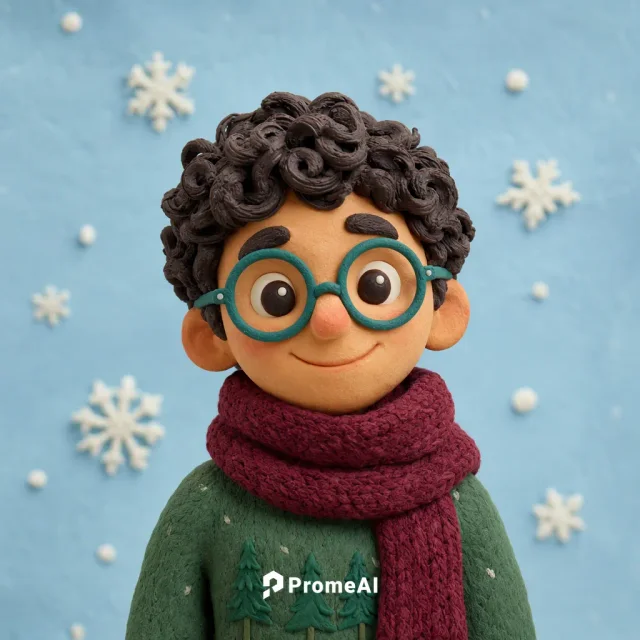
Start with a felt cottage, a tree ornament, or a city in a snow globe. Edit the subject and materials in the example prompt to create your own Christmas scene.
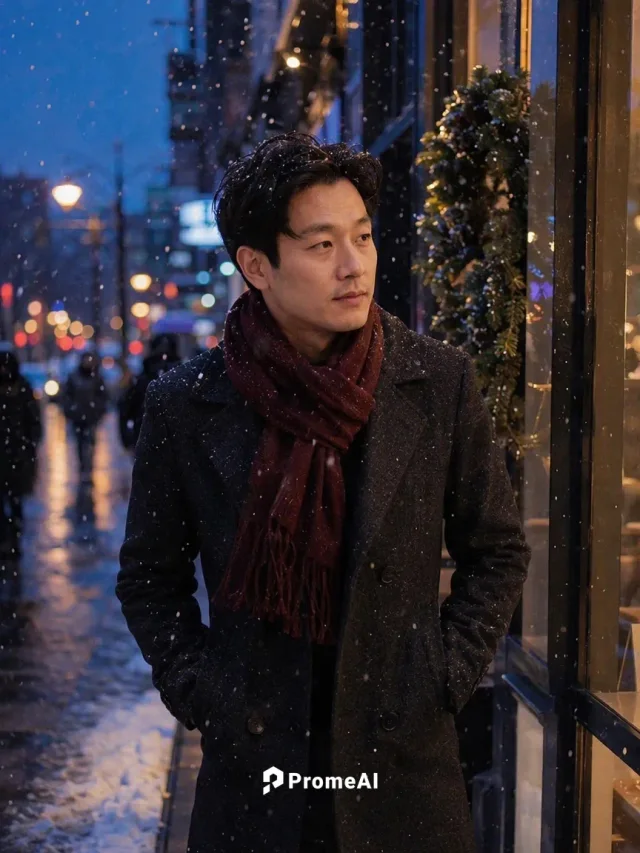
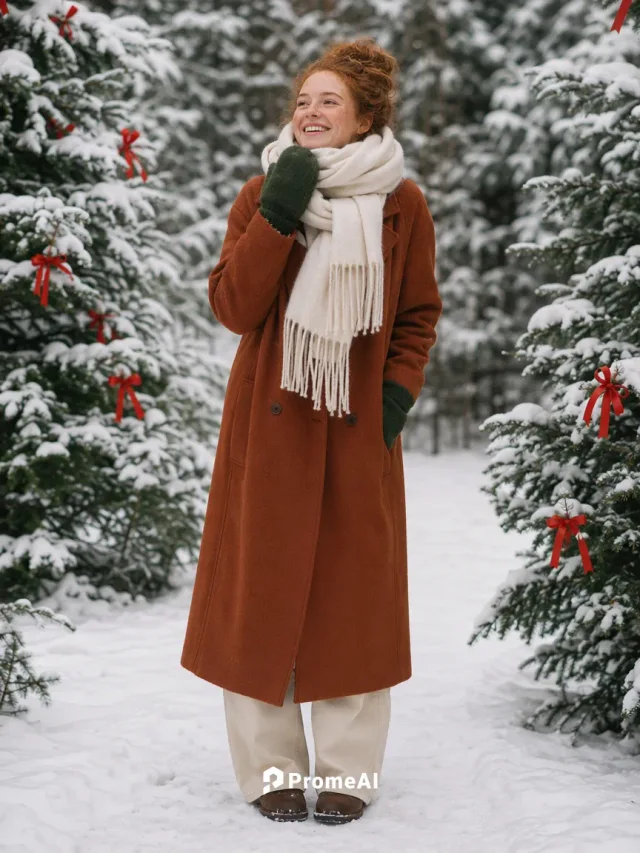
Describe a decorated tree, a snowy street, or a softly lit window around your subject. Tell the AI what to keep from your photo, then check the result.
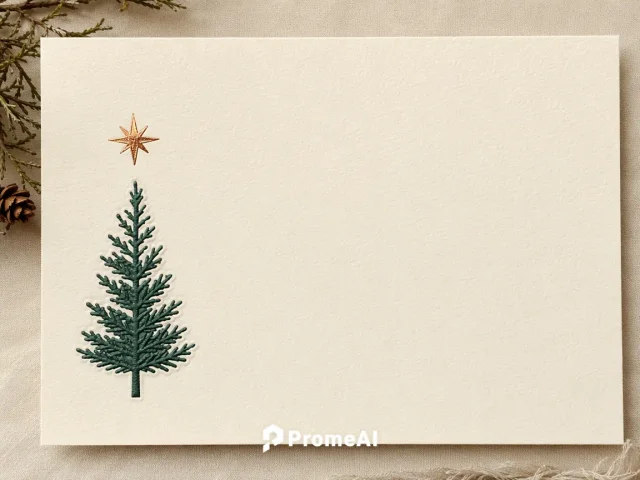
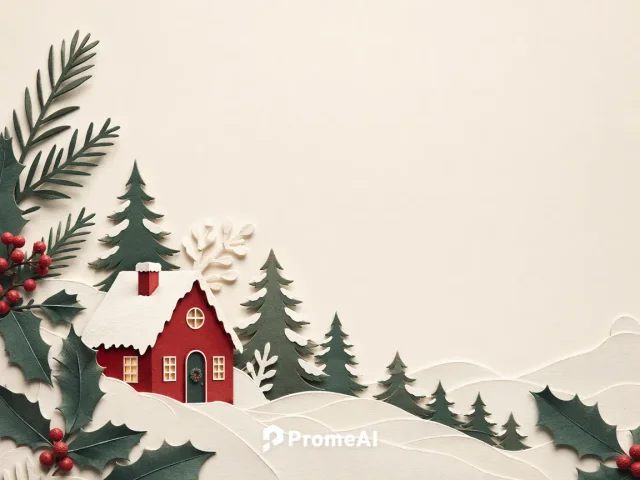
Try a paper-cut scene or a simple tree illustration with room for your greeting. Add names and proofread your message in your preferred editor; these examples provide artwork, not a finished print layout.
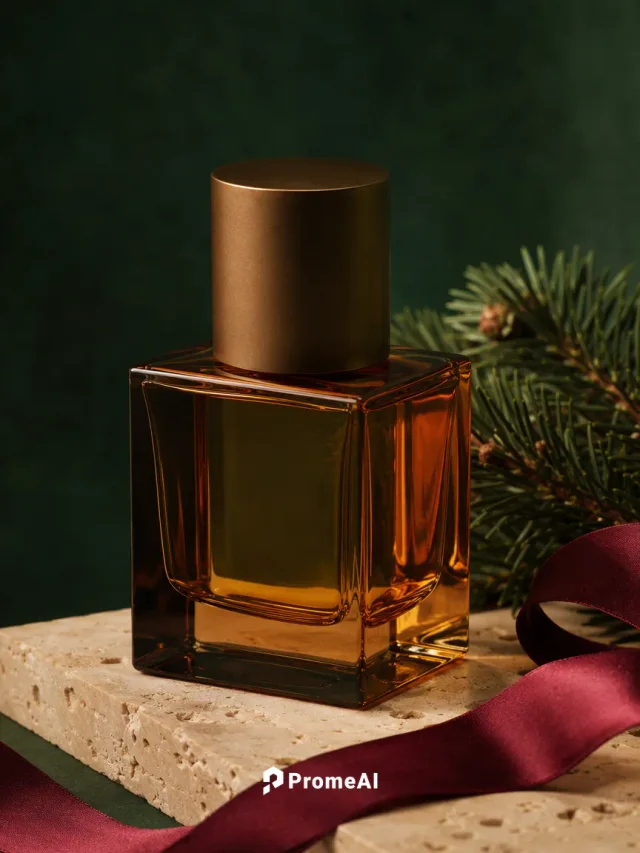
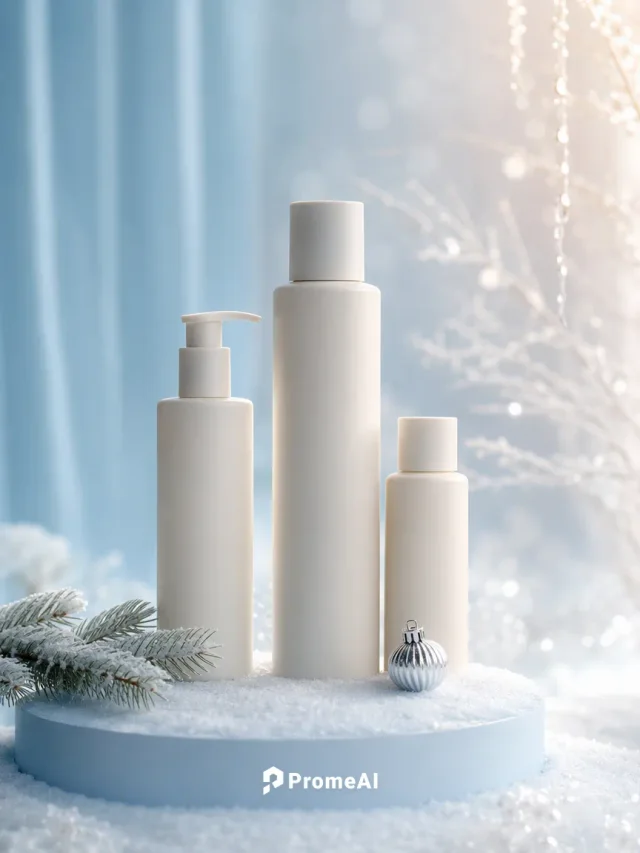
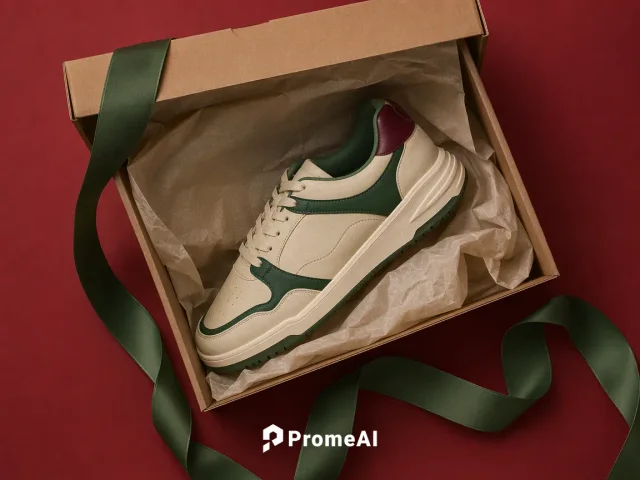
Upload a product photo and explore evergreen branches, ribbons, and holiday lighting. Specify the shape and packaging to keep, then compare the result with your original before using it in a campaign.
Make a Christmas story from your family or pet photo
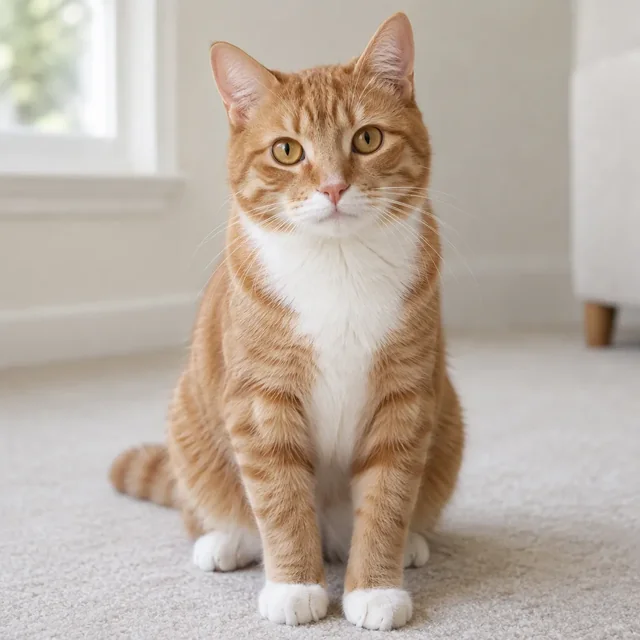
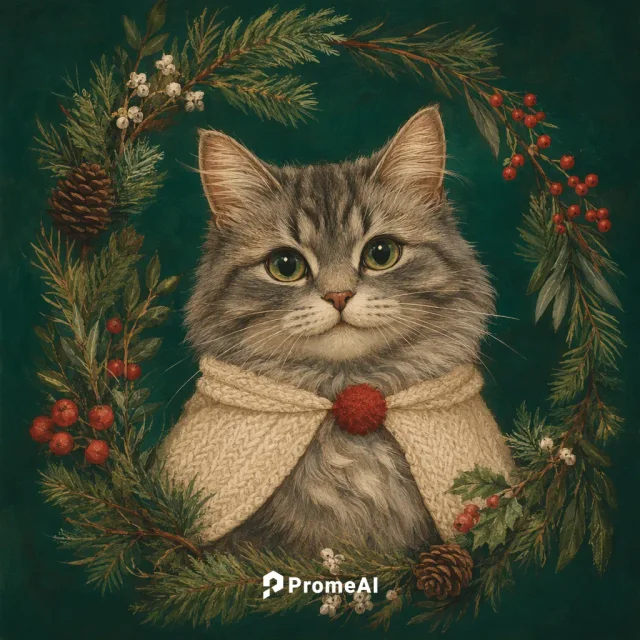
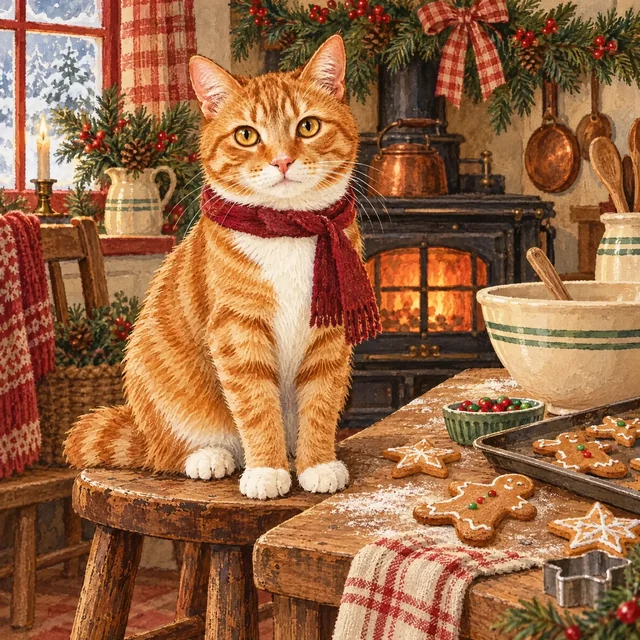
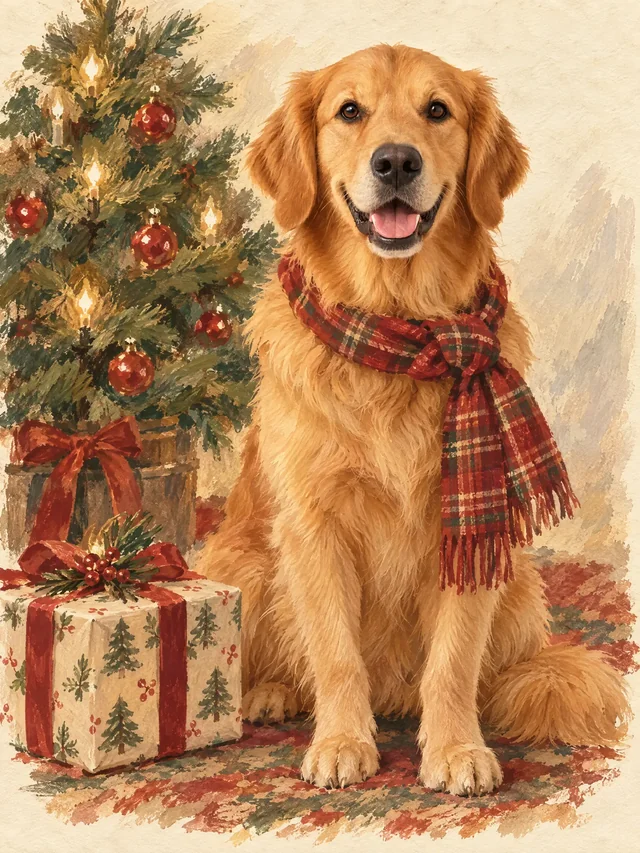
The original fictional pet photo and its actual gouache Christmas kitchen result show how a reference can guide an illustrated scene. Keep the same subjects and review their features; the result is an illustration, not an unchanged photograph.
Choose a festive look here, then generate and review your portrait in Canvas.
1
Add your photo
Upload a clear selfie, family or pet photo. Keep every face visible and use a photo with the subjects you want in the result. A reference is optional if you want a new image instead.
2
Choose a Christmas look
Choose Create Similar on a gallery example to load its look into the editor. Your uploaded photo stays in place when you switch styles.
3
Personalize your scene
Adjust the outfit, background and lighting. Describe the facial features, expression or pet markings you want to preserve from your reference.
4
Generate and review in Canvas
Continue in Canvas, sign in if needed, choose an available model and aspect ratio, and review the credit cost. Generate your Christmas photo, compare it with the original, and refine any details.
WATCH IT COME TO LIFE
A little Christmas inspiration, in motion
Watch two short examples from PromeAI, then bring your own photo and ideas to Canvas.
PET & PORTRAIT MAKEOVER
Watch a Christmas photo makeover
See Christmas pet and portrait ideas made with PromeAI Canvas. Then choose a look and personalize your own photo.
It helps you turn a selfie, family or pet photo into a Christmas-themed image. Choose a look, upload a reference and adjust the scene here, then generate in PromeAI Canvas. You can also create a new image without a reference.
Upload your photo in the editor and choose a Christmas look from the gallery. Adjust the scene and describe what to preserve. Continue in Canvas, choose an available model and aspect ratio, review credits, and generate. Compare faces and other details with your original before sharing.
Yes. Leave the optional upload empty and describe your idea in the Prompt field. You can create a new holiday scene without a reference photo.
Yes. Start with a clear selfie and choose a portrait look, such as candlelight or a snowy holiday scene. Describe the outfit and setting you want, and ask to preserve your facial features and expression. Review likeness after generating; an exact match is not guaranteed.
Yes. Upload a clear family or pet photo as a reference and describe the holiday setting. Keep every face visible in group photos. Review each person or pet in the result; likeness and complex arrangements can vary.
Use a clear reference photo and specify the facial features, expression, and appearance you want to preserve. References guide the result, but exact likeness is not guaranteed. Review the image and refine your prompt if needed.
You can create card artwork with space for a greeting. Add names and text, check spelling, and prepare the final layout in an editor that supports those adjustments.
Credits and availability depend on your account, chosen model, and settings. Review the cost shown in Canvas before starting a generation.
Continue in PromeAI Canvas to review your image and explore another variation. Available editing options depend on the model and workflow you choose.
Turn Your Photo into a Christmas Portrait
Choose your Christmas look, add a photo and continue creating in Canvas.



 Selected look Create Similar
 Create Similar
 Create Similar
 Create Similar
 Create Similar
 Create Similar
 Create Similar
 Create Similar
 Create Similar
 Create Similar
 Create Similar
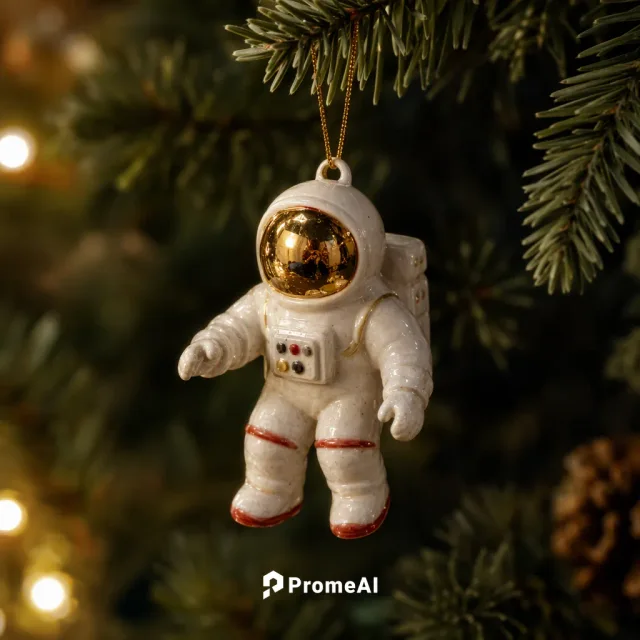 Create Similar
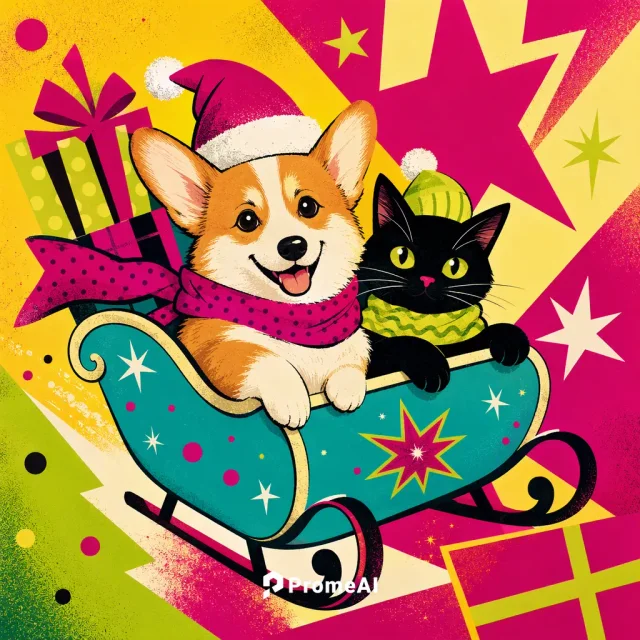 Create Similar
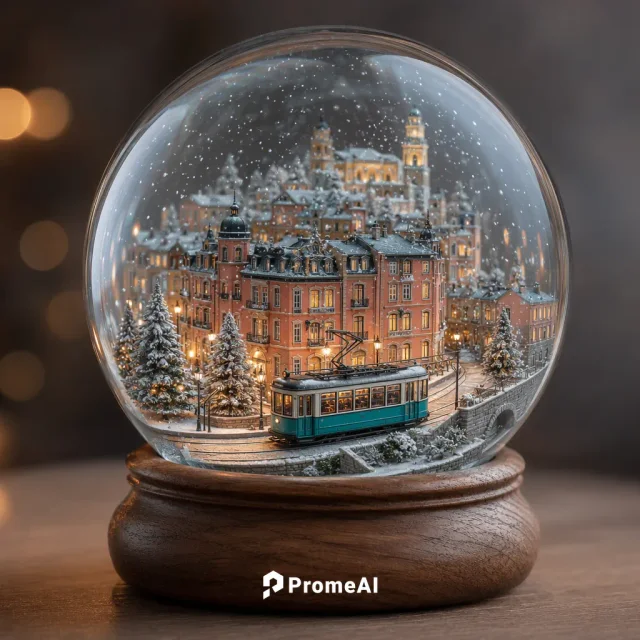 Create Similar
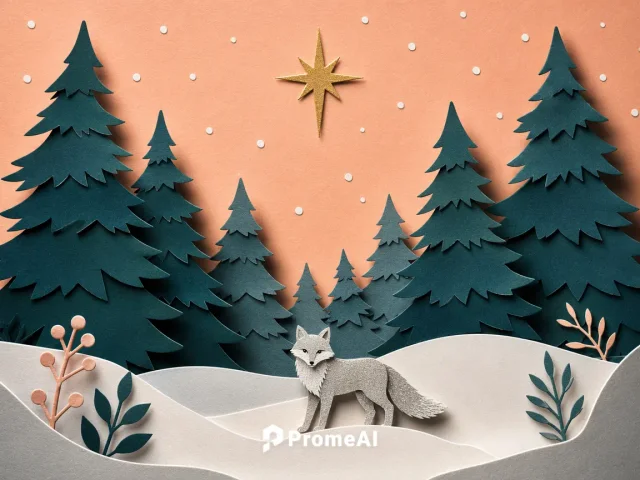 Create Similar
 Create Similar
 Create Similar
 Create Similar
 Create Similar
 Create Similar
 Create Similar
 Create Similar
 Create Similar
 Create Similar
 Create Similar
 Create Similar
 Create Similar
 Create Similar
 Create Similar
 Create Similar
 Create Similar
 Create Similar
 Create Similar
 Create Similar
 Create Similar
 Create Similar
 Create Similar
 Create Similar
 Create Similar
 Create Similar
 Create Similar
 Create Similar